
1. What is Hiringbot?
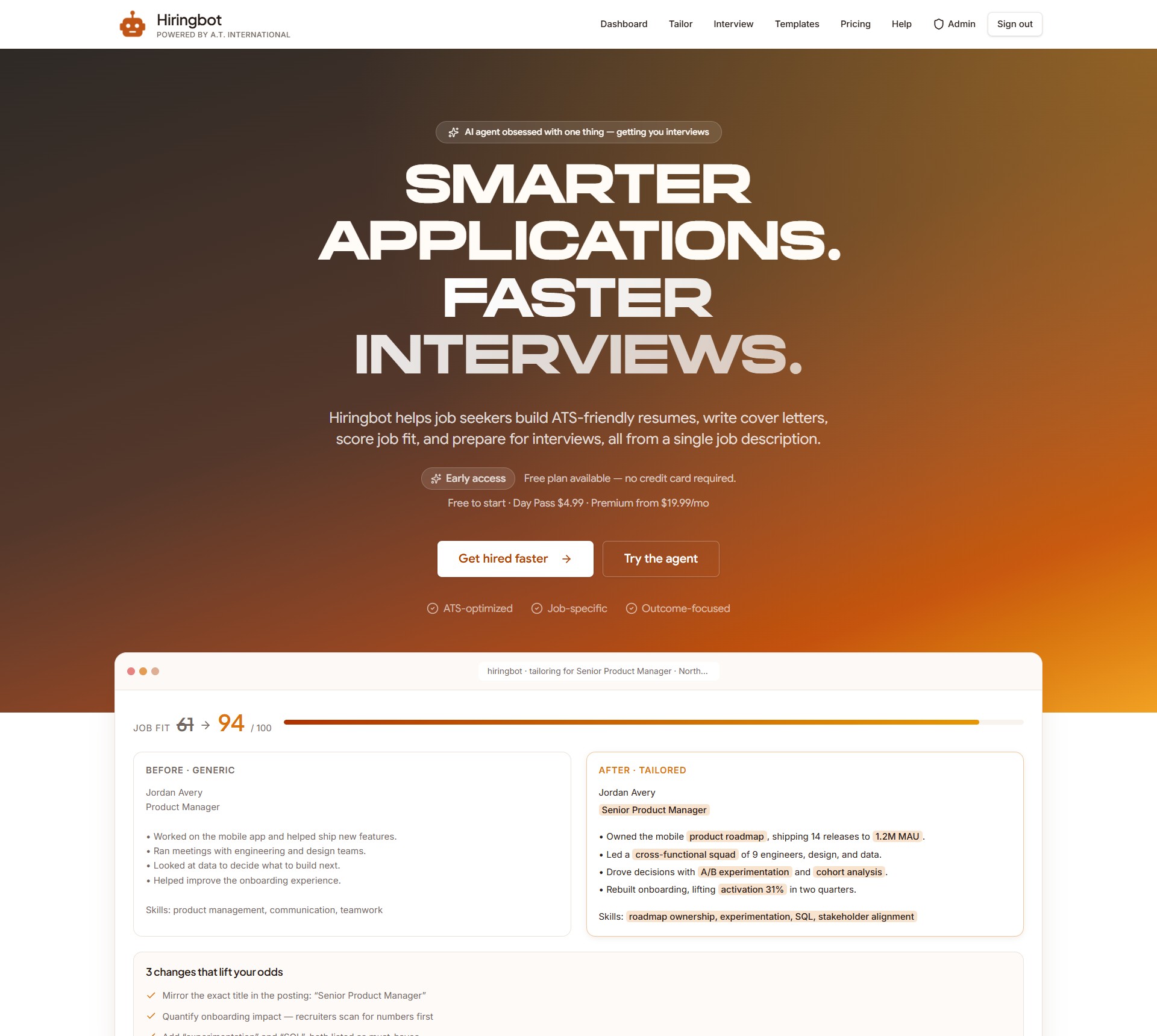
Hiringbot is an AI job application agent for job seekers. You give it a job description, and it helps you turn your resume into an ATS-friendly, job-specific application, including a tailored resume, a cover letter, a fit score, an interview prep plan, follow-up emails, and a dashboard to track every application.
It's built for three kinds of users:
- Career switchers who need their past experience reframed in a new industry's language.
- Early-career candidates who need a first resume that actually gets past applicant tracking systems.
- Experienced professionals applying to multiple roles who don't have time to hand-tailor every application.
Everything Hiringbot generates is saved to your account and fully editable before you send it. It's a starting point, not a final answer.
2. Creating your account and signing in
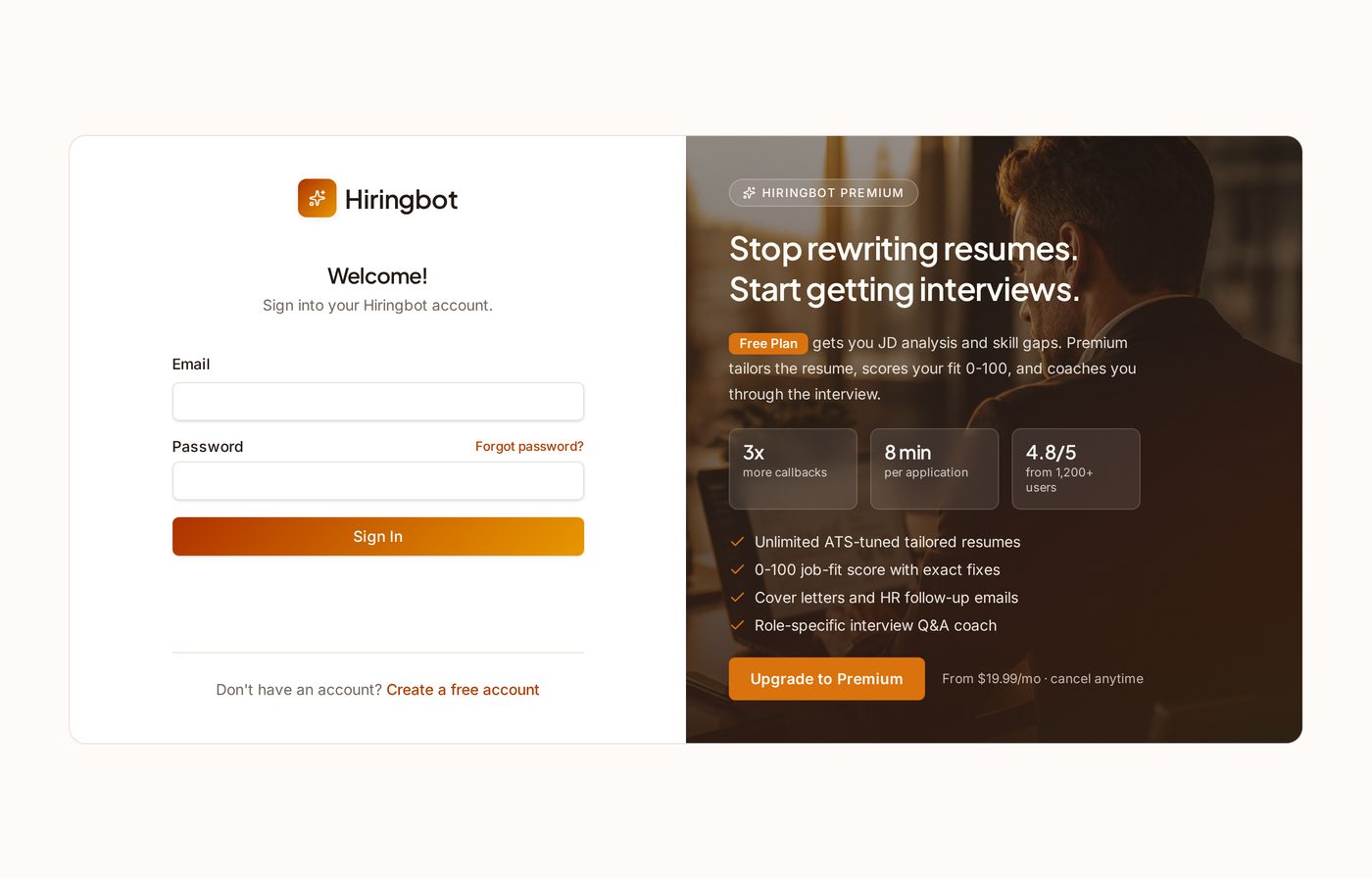
- Go to hiringbot.online.
- Click "Create account" in the top-right corner of any page.
- Sign up. No credit card is required for the free Starter plan.
- On future visits, click "Sign in" to get back to your dashboard.
3. How it works: the 3-step workflow
- Paste a job description. Drop in any job posting. Hiringbot reads it and pulls out what the employer is really asking for, including requirements that aren't obviously stated.
- Tailor in one click. Hiringbot instantly produces a job-specific resume, a matching cover letter, a fit score, and a skill gap analysis based on that one posting.
- Prep and follow up. Practice the interview questions Hiringbot expects for that role, then use the follow-up email drafts to stay on the hiring manager's radar after you apply.
4. Building your master resume
Go to the /resumes page to create one or more master resumes you can reuse across jobs. Starter plans can save one master resume; paid plans can save more.
There are two ways to build a master resume:
- Paste or upload an existing resume. Drop a PDF, DOCX, ODT, TXT, or Markdown file (up to 10MB). Hiringbot extracts the text so you can edit it, then save it as your master resume.
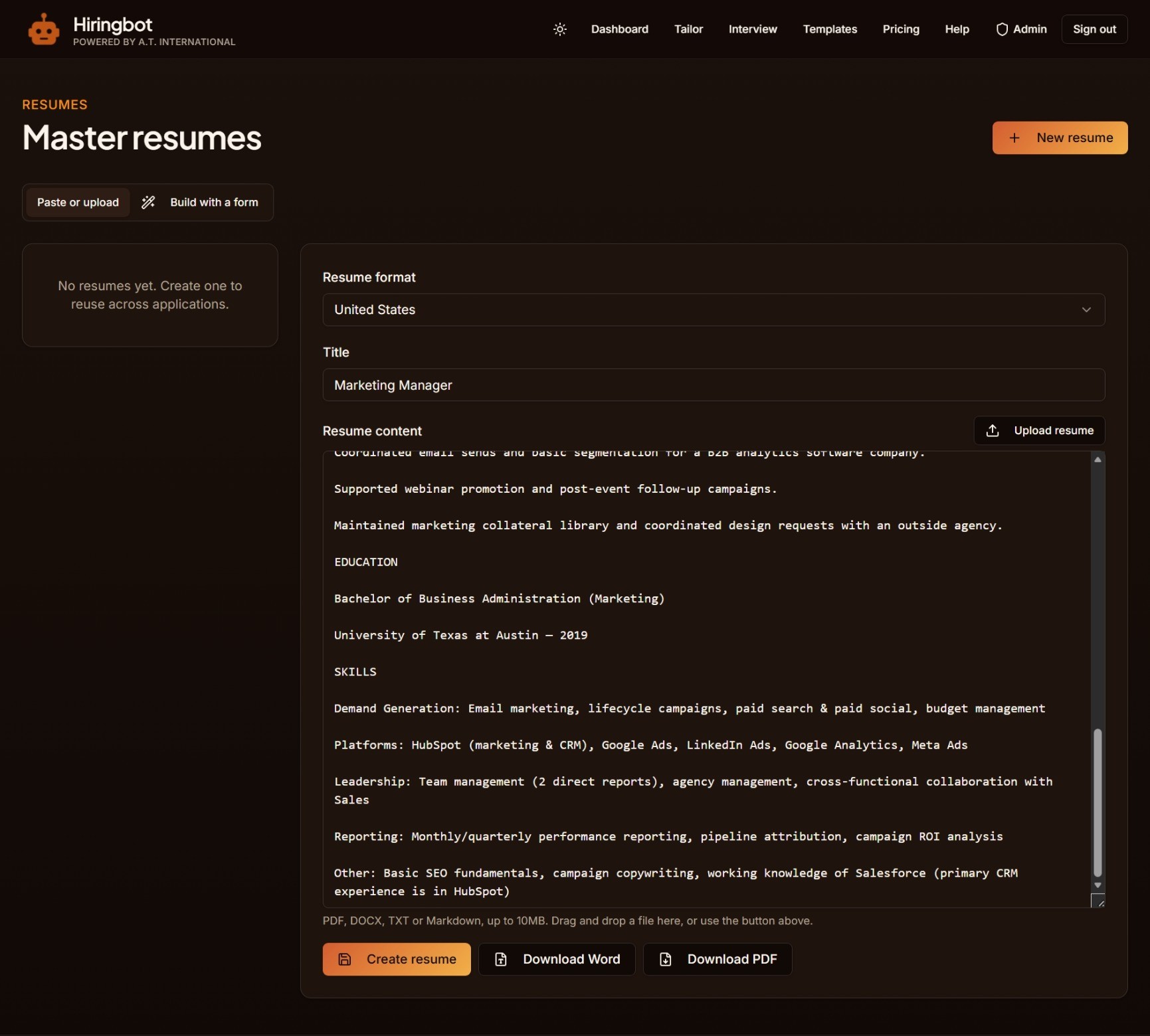
Paste or upload mode: drop in a PDF, DOCX, TXT or Markdown file, review the extracted text, then save it as a master resume. - Build with a Form. If you don't have a resume yet, switch the toggle to "Build with a Form." You'll choose your target country first, since that decides which fields come next — then answer a short guided form: contact info, work experience, education, skills, certifications, and projects. Depending on the country, you'll also see extra fields: a Personal Details section for Germany, Saudi Arabia, UAE, or Oman; a CGPA/percentage field on each education entry for India; or a full Referees section for Australia. Hiringbot generates a polished, ATS-friendly resume from scratch.
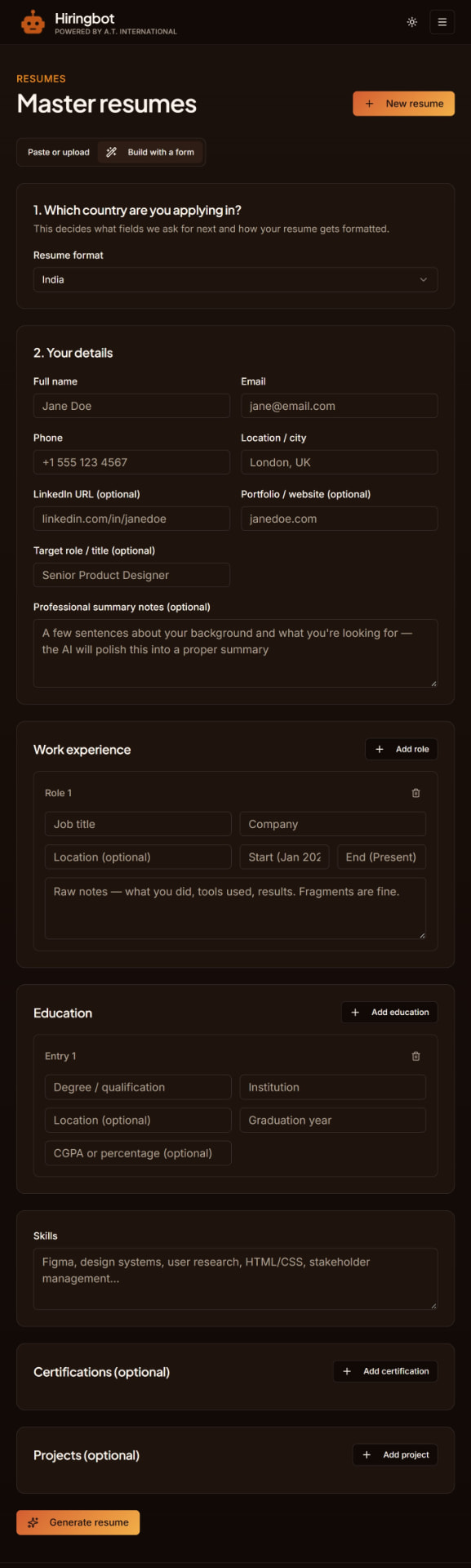
Build with a Form mode: answer the guided fields and Hiringbot generates a polished, ATS-friendly resume from scratch.
The Resume Format selector (US / UK / Canada / Australia / Germany / India / Saudi Arabia / UAE / Oman / Other) is available for every generated resume. Each format follows real country-specific conventions:
- UK: becomes a "CV" with a Personal Profile section and no photo/DOB.
- Australia: includes named referees and a concise summary.
- US / Canada: stays minimal, single-column, no photo/DOB, keyword-focused.
- India: single-column, ATS-friendly layout; includes CGPA/percentage if provided, no photo/DOB.
- Germany: becomes a "Lebenslauf" with a true two-column tabular layout for Experience and Education (dates in a left column, details in the right), an optional Personal Details section, and a formal closing signature line.
- Saudi Arabia / UAE / Oman: single-column, 2-page GCC convention; includes a Personal Details section and an optional professional photo.
- Other / International: a clean, generic international format that works across regions.
Choosing Germany, Saudi Arabia, UAE, or Oman also reveals a photo upload field — Lebenslauf and Gulf conventions commonly include a professional headshot. Upload a JPEG, PNG, or WebP (up to 5MB); Hiringbot embeds it on the generated document, properly cropped to fit rather than stretched. The photo is stored privately and only used for documents you generate in this format.
When you paste or upload an existing resume — here or on the Tailor page — and your selected country has a specific expectation your resume doesn't seem to mention (referees for Australia, a CGPA/percentage for India, a Personal Details section or photo for Germany, Saudi Arabia, UAE, or Oman), Hiringbot shows a small prompt asking if you'd like to add it. You can fill in just that missing piece on the spot, or dismiss the prompt and continue without it — nothing is ever added automatically.
Once your resume is generated, you can download it as a Word document or PDF, save it directly to your Templates library, or use it as the source for tailoring on the Tailor page.
5. Step-by-step: tailoring a resume to a job
- From any page, click "Try the agent" or go straight to the Tailor page.
The 8 tools on this page are grouped into three stages: Understand the job (Job Description (JD) Analysis, Skill Gaps, Fit Score), Build your application (Tailored Resume, Cover Letter, LinkedIn), and After you apply (Follow-ups, Portfolio Ideas) — work through them roughly in that order, though nothing stops you from jumping around.
- Paste the full job posting into the "Job description" box. The more complete the posting, the better the tailoring.
- Click "Sign in to tailor your resume." If you're not logged in yet, Hiringbot asks you to sign in or create a free account first, and your draft job description stays private and isn't lost.
- Once signed in, add your current resume: upload it, drag and drop a file directly onto the resume box, paste it, or load a saved master resume from the dropdown.
- Click Details to expand the Company, Role, and Resume Format fields — collapsed by default to keep the page focused on the job description and your resume. Choose your target Resume Format here: US, UK, Canada, Australia, Germany, India, Saudi Arabia, UAE, Oman, or Other / International. Selecting Germany, Saudi Arabia, UAE, or Oman also reveals an optional photo upload.
- Review the tailored version. Hiringbot rewrites bullet points, adjusts your job title language, and inserts missing keywords so the wording mirrors the posting, without inventing achievements that aren't yours.
- Once you generate a Fit Score, it stays visible as a small colored badge next to the tabs no matter which tab you're viewing — green for a strong match, amber for partial, red for weak.
- Check the "3 changes that lift your odds" list. It tells you exactly what to fix first if you'd rather edit manually.
- On the Tailored Resume tab, use the direct "Download Word" and "Download PDF" buttons to save your file, or save the tailored resume to your account to track it on the Dashboard.
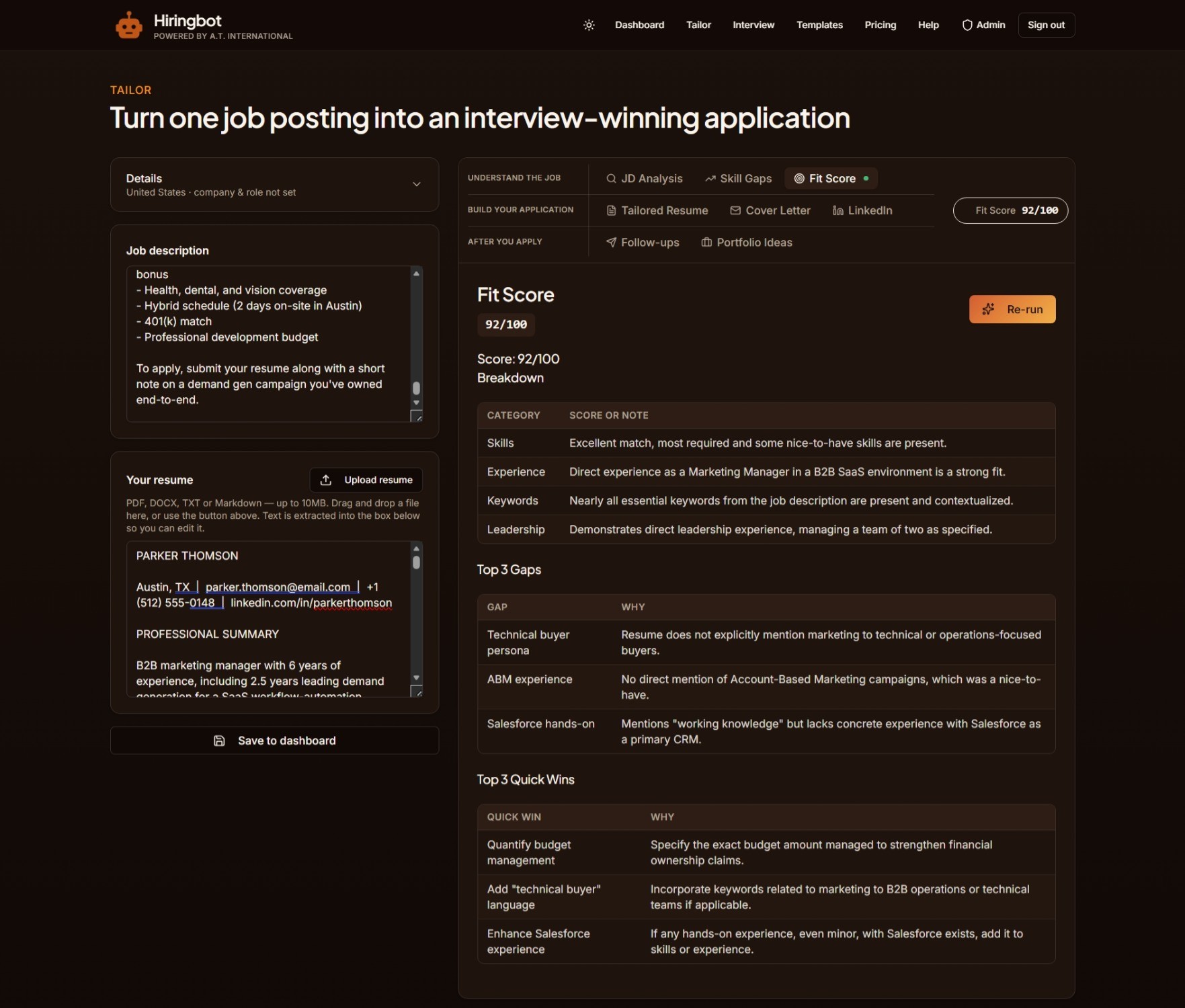
6. Understanding your Job Fit Score
The Job Fit Score (0-100, Premium and above) tells you how closely your resume currently matches a specific job description. It's calculated from keyword overlap, required skills coverage, and how closely your job titles and experience level match what's being asked for.
- 90-100: Strong match. You're a clear fit on paper.
- 60-89: Partial match. Some real gaps, worth tailoring before you apply.
- Below 60: Weak match. Consider whether the role is a stretch, or use the skill gap roadmap first.
Alongside the score, Hiringbot lists the top 3 specific changes that would raise it, for example mirroring an exact job title, adding a specific keyword, or quantifying an achievement that's currently vague.
7. Cover letters, interview prep, and follow-up emails
Cover letters (Premium)
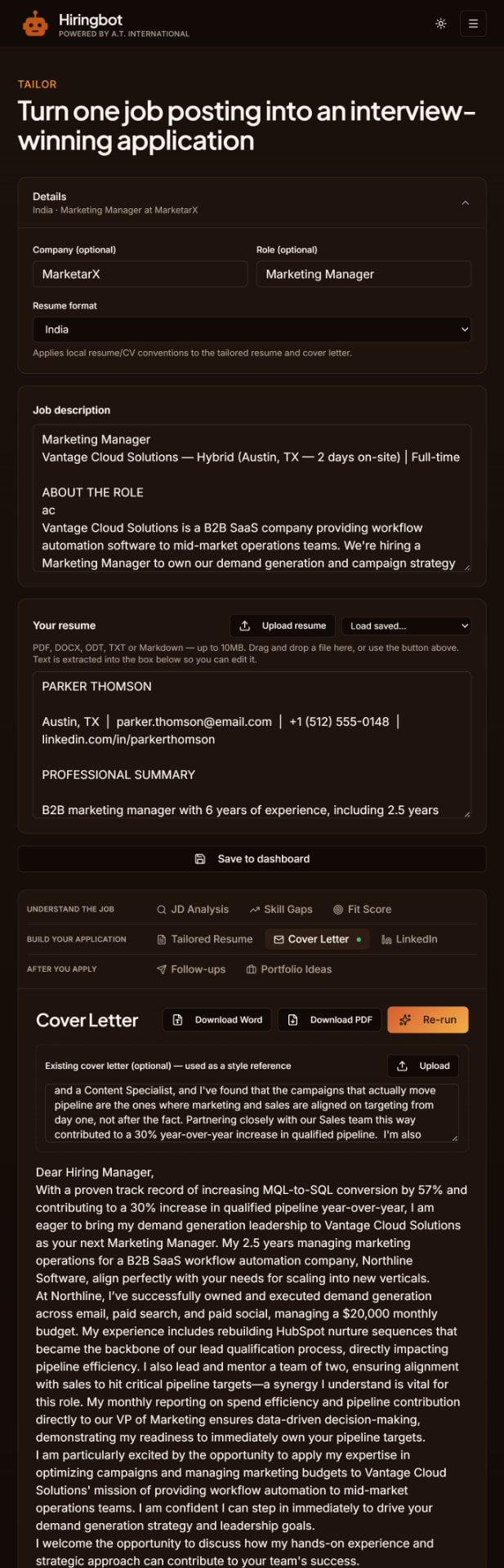
Generated from the same job description and resume, capped at 350 words, and written to lead with proof of relevant results rather than generic opening lines. You can also upload or paste an existing cover letter as a style reference — Hiringbot will match your voice and reuse specific points you'd already written, rather than starting from a blank page. Once generated, use the Download Word and Download PDF buttons on the Cover Letter tab to save it, the same as the Tailored Resume tab.
Interview Q&A coach (Premium)
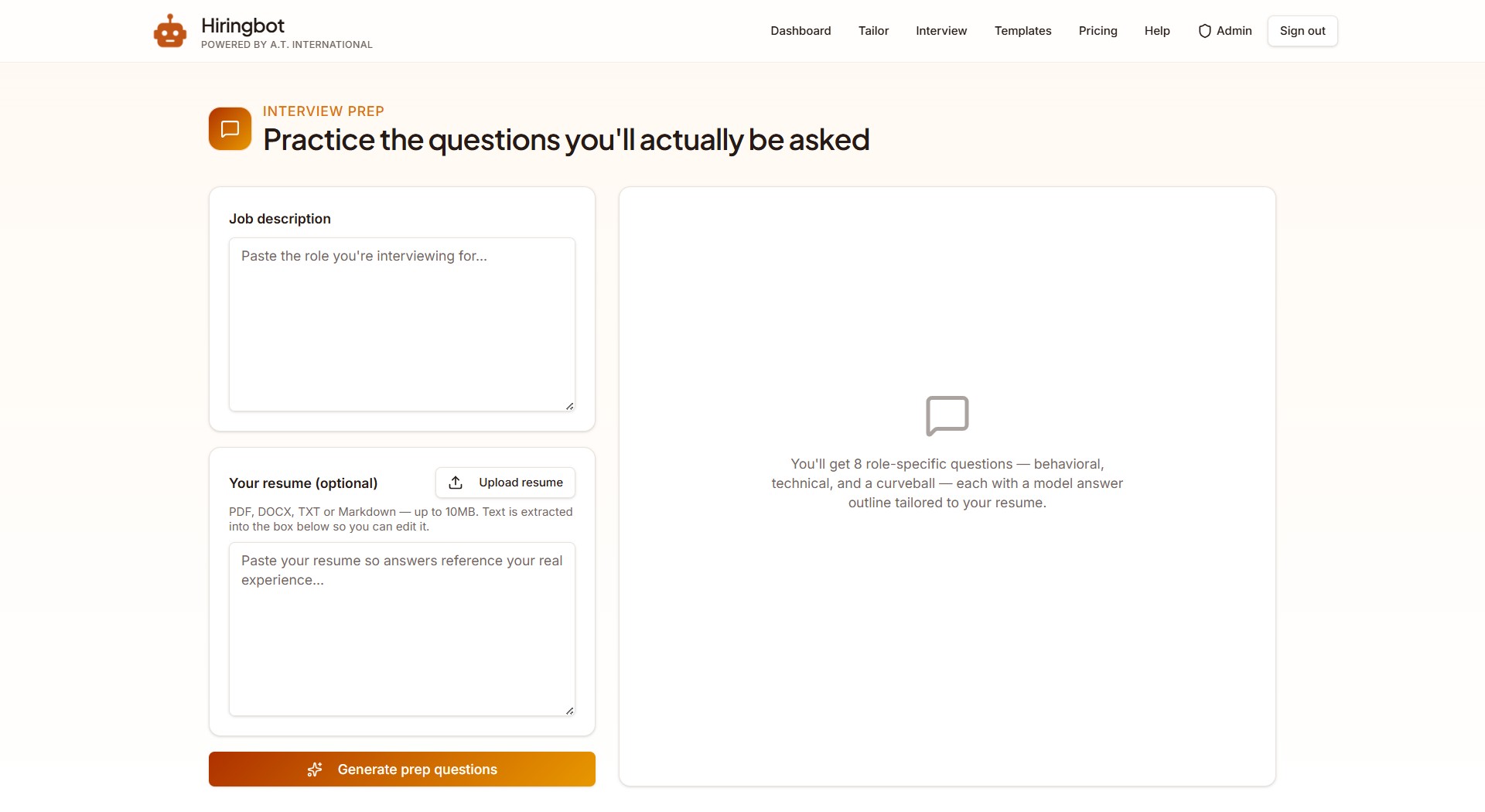
Produces likely behavioral, technical, and role-specific "curveball" questions for the posting you tailored to, along with model answers built from your actual resume so you can practice in your own words. On the Interview page you can upload your resume, paste it, or load a saved master resume from the dropdown — the same options as the Tailor page — instead of only a plain paste box.
Skill gap roadmap (Free)
Compares your resume to the job description and lists what's missing, plus concrete ways to close the gap: specific courses, certifications, or small one-week projects.
HR follow-up emails (Advanced)
Drafts the messages that come after you apply: a post-application note, an interview thank-you, and a polite check-in if you haven't heard back, timed so you stay visible without being pushy.
8. Using the free resume templates
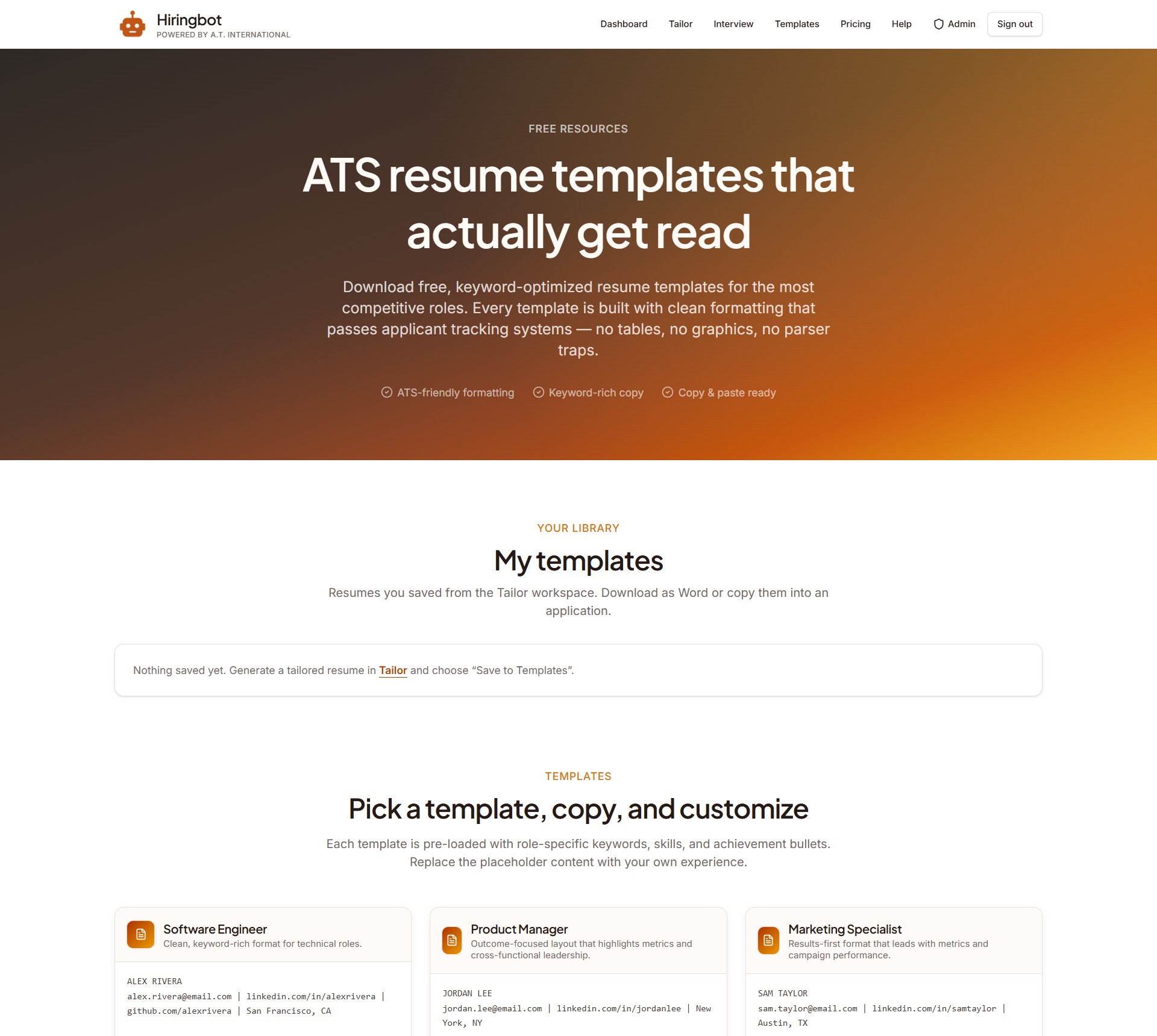
The Templates page has 12 ready-to-use, ATS-safe resume templates. The original set covers Software Engineer, Product Manager, Marketing Specialist, UX Designer, Data Analyst, and a General/Entry-Level format; a second "More Fields" section covers Registered Nurse, Sales/Account Executive, Elementary Teacher, Customer Support Specialist, HR Generalist, and Financial Analyst. Free, with no account required.
- Open the Templates page and find the closest role match.
- Click "Copy template" to copy the text, or "Download Word" to get a .docx file.
- Replace the placeholder name, contact details, and bullet points with your own experience and numbers.
- For a job-specific version instead of a generic one, use "Tailor my resume" at the bottom of the page to run it through the AI agent against a real posting.
Five formatting rules that keep any resume readable by ATS software:
- Use a single-column layout. Multi-column formats confuse ATS parsers.
- Stick to standard fonts (Arial, Calibri, Garamond, Georgia).
- Mirror the job description's exact wording for skills and titles.
- Avoid tables, images, and headers or footers. ATS systems often strip or ignore them.
- Submit as .docx or plain text. Heavily formatted PDFs can parse incorrectly.
9. Tracking your applications
The Dashboard shows every application you save. At the top, stat cards display your total saved resumes, total applications, average fit score, and how many roles you've marked as applied.
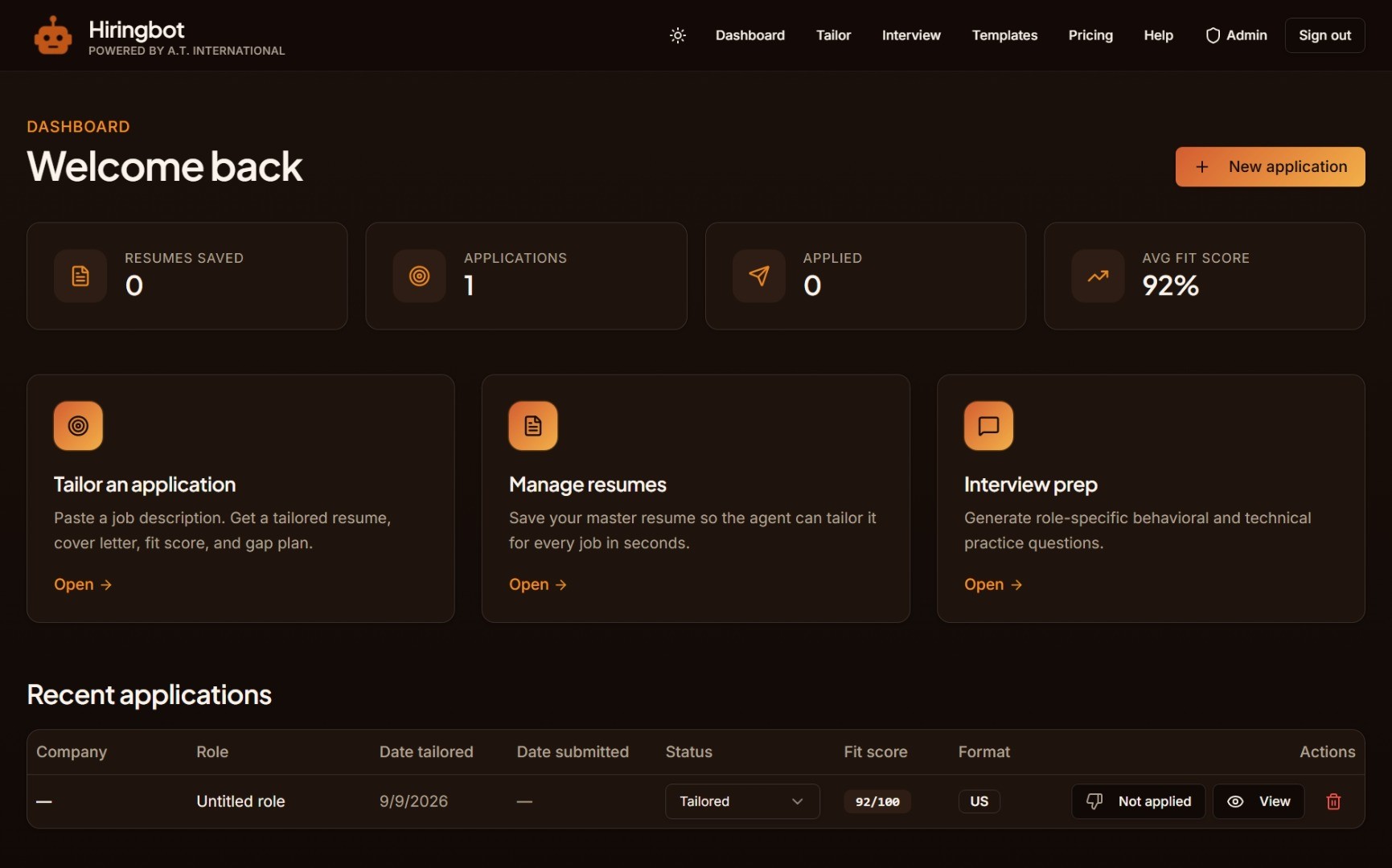
The main table columns are:
- Company — the employer name.
- Role — the job title.
- Date Tailored — when you created the tailored version.
- Date Submitted — when you applied (set manually or via Mark as Applied).
- Status — current stage in the pipeline.
- Fit Score — the score from your last tailoring run.
- Format — the country format used (US, UK, Canada, Australia, Germany, India, Saudi Arabia, UAE, Oman, or Other).
- Actions — View, an Applied toggle, or Delete.
Status can be changed inline via a dropdown:
- Tailored
- Applied
- Interviewing
- Offer
- Rejected
- Withdrawn
The Applied toggle is a two-way switch, not a one-time action: it starts as a grey "Not applied" with a thumbs-down icon, and clicking it flips to a green "Applied" with a thumbs-up, recording the submission date. Clicking it again reverts back to "Not applied" and clears the date — a genuine undo if you click it by mistake. This toggle disappears once an application moves to Interviewing, Offer, Rejected, or Withdrawn, since "did I apply" is no longer the relevant question at that stage. Clicking View opens an editable panel where you can add the job posting URL, set a follow-up reminder date, and save free-text notes about the role or recruiter. The View panel also includes Download Word and Download PDF buttons for both the tailored resume and the cover letter, so you can always re-download a past application even if you've lost the original file.
10. Sharing feedback & testimonials
If you're a registered user, you can leave a public review of Hiringbot for other job seekers to see.
- Go to /feedback — also reachable from the site footer, the Dashboard, or "Feedback" in the main navigation.
- Rate your experience (1-5 stars) and write a short comment. Name, designation, and country of residence are required; email, LinkedIn, and other social handles are optional — adding a LinkedIn profile is recommended, since it's shown publicly next to your review and adds real credibility.
- Each account can submit one testimonial. Once you've submitted, you'll see your own submission and its status (pending review, published, or not published) instead of the form — there's no way to submit a second one from the same account.
Submitted testimonials are reviewed before publishing. Approved ones appear on the homepage and on the full Testimonials page, alongside everyone else's.
11. Plans and pricing
Hiringbot uses outcome-based pricing. You can start entirely free and upgrade only when you need per-job tailoring at volume.
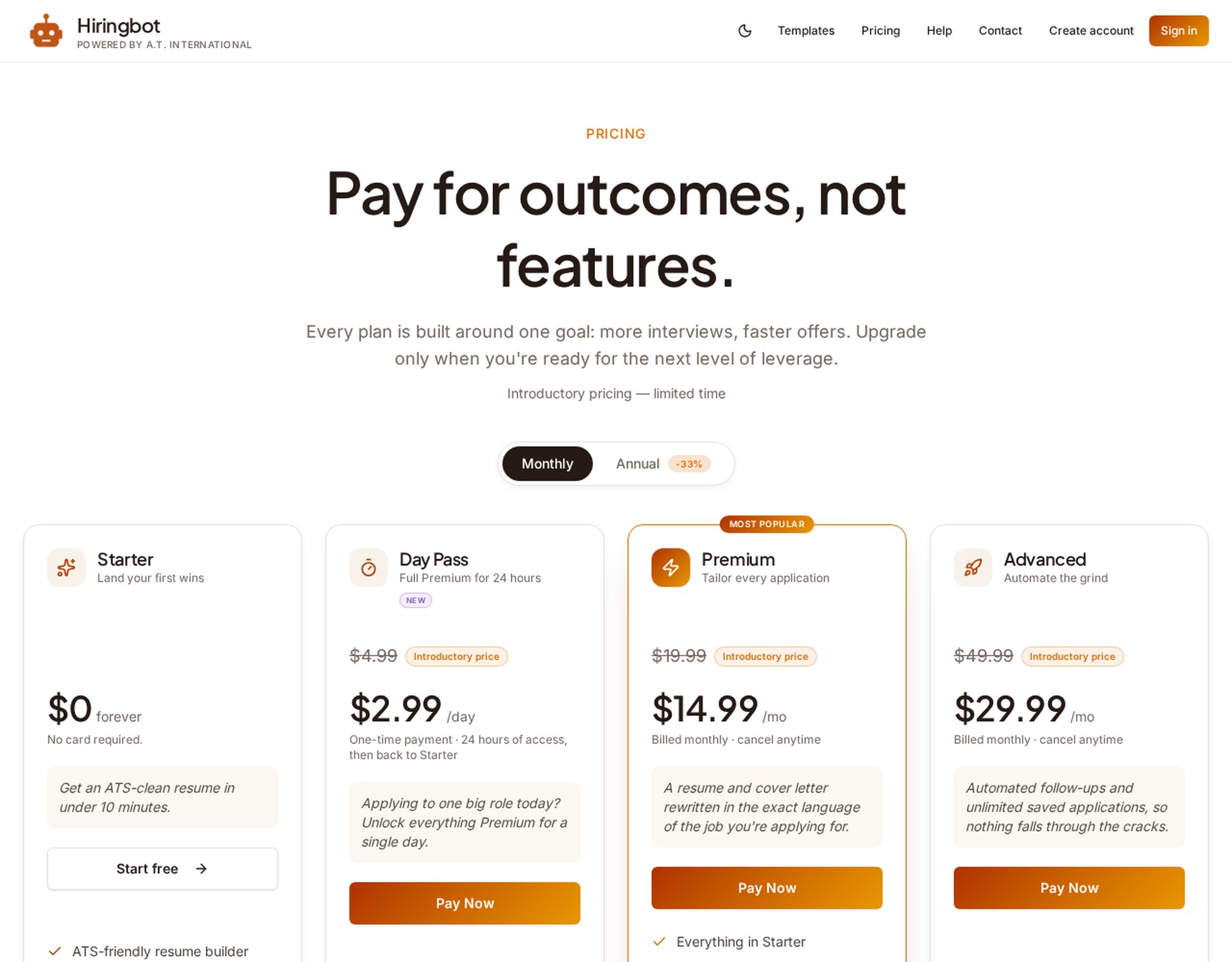
| Plan | Price | Applications / mo | Tailored resumes? | Best for |
|---|---|---|---|---|
| Starter (Free) | $0 | Up to 3 | No (generic templates) | Trying the tool, building your first ATS resume |
| Day Pass (24 hours) | $2.99 once | Up to 50 | Yes, per job | One urgent application today, without a subscription |
| Premium | $14.99/mo | Up to 50 | Yes, per job | Active job seekers who want tailored resumes and fit scores |
| Advanced | $29.99/mo | Unlimited | Yes, per job | Applying to 5+ jobs a week, wants follow-up emails too |
Feature breakdown by plan
| Feature | Plan needed | What it does |
|---|---|---|
| Resume builder (from scratch) | Free | Generates a full ATS-friendly resume from a guided form for people with no existing resume to start from. |
| Country-specific resume formats | Free | Formats resumes and cover letters to US, UK, Canadian, Australian, German, Indian, Saudi, UAE, Omani, or general international conventions. |
| Germany / Lebenslauf format | Free | Generates a true tabular Lebenslauf with a photo upload, two-column Experience/Education layout, and German CV conventions. |
| ATS-tuned resume builder | Free | Builds a clean, keyword-friendly resume that applicant tracking systems can read. |
| Skill gap roadmap | Free | Shows what's missing for a role and suggests courses, certs, or 1-week projects to close the gap. |
| Job-fit scoring (0-100) | Premium | Scores your resume against a specific job description and lists the top 3 changes to improve it. |
| Auto-tailored resume per job | Premium | Rewrites your resume's wording and keywords to match a specific job posting. |
| Cover letters | Premium | Generates a job-specific cover letter (350 words or less) built around proof, not filler. |
| Interview Q&A coach | Premium | Generates likely behavioral, technical and curveball questions with model answers based on your resume. |
| LinkedIn profile optimizer | Premium | Suggests edits to your LinkedIn profile to match your target roles. |
| HR follow-up emails | Advanced | Drafts post-application emails, thank-you notes, and polite nudges. |
| Portfolio & project suggestions | Advanced | Suggests concrete portfolio pieces and side-projects to close gaps for a specific role. |
12. Billing, cancellation, and refunds
- Secure checkout — UPI, cards and netbanking via Razorpay in India; PayPal elsewhere.
- Monthly plans can be cancelled at any time from your account settings. You keep access until the end of the paid period.
- Annual plans renew yearly at the discounted rate. Cancel before the renewal date to stop future billing.
- The Day Pass is a single $2.99 payment that unlocks all Premium features for 24 hours, then ends automatically. Nothing to cancel, and it is non-refundable once access starts.
- Refunds: monthly plans simply cancel with no charge going forward. For annual plans, email support within 30 days of purchase for a refund minus one month at the standard monthly rate. See the Refund Policy.
13. Privacy and data
Your resumes, tailored applications, and account details are stored under your account and are not shared publicly. Everything the AI agent generates is yours to edit, save, or delete. For the full legal details, see the Privacy Policy and Terms of Service.
14. Frequently asked questions
Is Hiringbot free to use?
Yes. The Starter plan is free forever and includes an ATS-friendly resume builder, a job description analyzer, skill gap suggestions, one saved master resume, and up to 3 applications a month. Paid plans unlock per-job tailoring, fit scoring, and higher application limits.
Will my resume actually pass ATS systems?
Hiringbot's templates and tailoring follow standard ATS-safe formatting: single-column layout, standard fonts, no tables or embedded images, and keyword matching against the job description. This significantly improves your odds of being parsed correctly, though no tool can guarantee every employer's specific ATS configuration.
What if I don't have a resume yet?
Use the resume builder on the /resumes page — answer a short guided form about your experience, education, and skills, and Hiringbot generates a polished, ATS-friendly resume from scratch, formatted for your target country.
Does Hiringbot support German CV (Lebenslauf) formatting?
Yes. Select "Germany" from the Resume Format dropdown on the Tailor page or the resume builder. This produces a genuine tabular Lebenslauf layout — not just a color theme like the other formats — with dates in a left column and details in the right, plus an optional photo upload and a Personal Details section using only the facts you provide.
Does Hiringbot write my resume for me from nothing?
If you don't have an existing resume, use the Build with a Form mode on the /resumes page. You provide the facts about your experience, education, skills, and projects; Hiringbot structures and words them into a complete, ATS-friendly resume. If you already have a resume, paste or upload it and Hiringbot will tailor and reframe your existing experience to match a job description.
What's the difference between Premium and Advanced?
Premium adds per-job tailoring, fit scoring, cover letters, interview prep, and a LinkedIn optimizer, with up to 50 applications a month. Advanced adds HR follow-up email drafts and unlimited applications, built for people applying at high volume.
Can I cancel anytime?
Yes, monthly plans can be cancelled at any time with no penalty. Annual plans renew yearly unless cancelled before the renewal date.
15. Getting help
If something isn't working, or you have a question this guide doesn't cover:
- Email support@atinternational.online for account, billing, or product questions.
- Check the Privacy Policy, Terms of Service, and Refund Policy in the site footer for legal specifics.
- Refund requests (annual plans): email support within 30 days of purchase.